

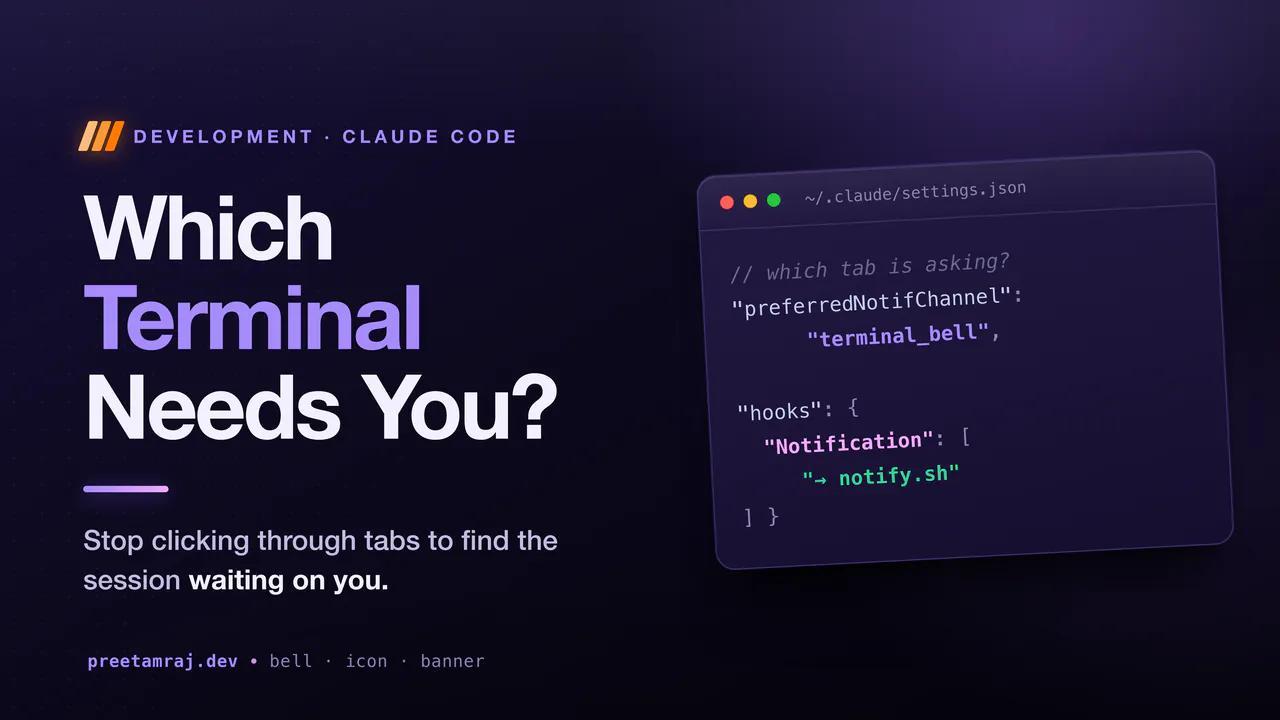
Claude Code Notifications: Know Which Terminal Needs You
July 18, 2026
3017 min readRunning several Claude Code sessions across terminal tabs? A notification setup for Cursor and VS Code that shows which one needs you, even when away.
I usually have three or four Claude Code sessions open at once, each in its own terminal tab inside Cursor. One is refactoring, one is writing tests, one is waiting on me to approve a command. The problem is the last one. Claude pauses for permission, and I have no idea which tab it is until I click through all of them. Multiply that by a full day and it is a surprising amount of small, stupid friction.
So I fixed it. What I wanted was simple to describe and annoyingly fiddly to build: a signal that tells me which terminal needs me, and something louder for when I have wandered off entirely - whether a session is waiting on a decision or has just finished its work. Here is the setup I run now, in three layers, plus the exact gotchas that cost me an hour so they do not cost you one.
Layer 1: which terminal is asking
Claude Code already knows how to get your attention - it just needs to be told to use the terminal bell. Add this to your Claude settings at ~/.claude/settings.json:
{
  "preferredNotifChannel": "terminal_bell"
}
Now, when Claude needs input, it rings the terminal bell. On its own that does nothing visible, because your editor has to be told to show the bell. This is the part that tripped me up, so read the next section carefully before you touch anything.
The gotcha that cost me an hour: the settings file
Both Cursor and VS Code store their user settings in a settings.json, but in different folders:
- VS Code:
~/Library/Application Support/Code/User/settings.json - Cursor:
~/Library/Application Support/Cursor/User/settings.json
I spent far too long editing the VS Code file while actually running Cursor, watching nothing happen. Do not hand-edit the path. Open the correct file every time with the command palette: Cmd+Shift+P, then Preferences: Open User Settings (JSON). It opens the file for the editor you are actually in.
In that file, turn on the visual bell:
{
  "terminal.integrated.enableVisualBell": true,
  "terminal.integrated.bellDuration": 5000
}
enableVisualBell is what puts a bell icon on the tab of the terminal that rang, so a glance at the tab list tells you which session is waiting. If your editor flags terminal.integrated.enableBell as deprecated, ignore it - enableVisualBell is its replacement. The bellDuration is in milliseconds and controls how long the icon lingers. The default is a single second, which is far too quick to catch. Five seconds is the sweet spot: long enough to notice, short enough not to nag.
Layer 2: a sound, so you do not have to be looking
An icon only helps if your eyes are already on the tab bar. For a cue you can hear, add the accessibility signal to the same editor settings file:
{
  "accessibility.signals.terminalBell": {
    "sound": "on"
  }
}
One honest quirk: your editor stays silent for the terminal you are currently focused on, and only plays the sound for background terminals. That is actually the behaviour you want here - if you are already looking at a terminal, you do not need a beep to find it.
Layer 3: a banner for when you have wandered off
The bell and the icon are perfect while you are inside the editor. But half the time I kick off a long task and go read docs in the browser, with the editor nowhere on screen. For that I want a proper macOS notification - both when Claude needs a decision and, just as usefully, when it finishes while I am away.
Those are two separate events. Claude Code runs a hook on Notification, when it pauses for your input, and on Stop, when it finishes a task and hands back to you. Both can fire a native banner with osascript. But a banner should only appear when you are actually away - one popping up while you stare at the editor is just noise. So the script checks the frontmost app first and bails out if it is your editor. lsappinfo reports that with no permission prompt, which makes it perfect for the check.
Create ~/.claude/hooks/notify.sh. It takes the event kind as an argument so the "task finished" banner reads differently from the "needs you" one:
#!/usr/bin/env bash
kind="$1"   # "stop" (finished) or "notification" (needs input)
input="$(cat)"

front="$(lsappinfo info -only name "$(lsappinfo front 2>/dev/null)" 2>/dev/null)"
case "$front" in
  *Cursor*|*"Visual Studio Code"*|*Code*|*Electron*) exit 0 ;;
esac

msg="$(printf '%s' "$input" | jq -r '.message // empty')"
if [ -z "$msg" ]; then
  case "$kind" in
    stop) msg="Task finished - ready for you" ;;
    *)    msg="Waiting for your input" ;;
  esac
fi

dir="$(printf '%s' "$input" | jq -r '.cwd // empty')"
[ -n "$dir" ] && dir="$(basename "$dir")" || dir="Claude Code"

msg="${msg//\"/}"; msg="${msg//\\/}"; dir="${dir//\"/}"

osascript -e "display notification \"$msg\" with title \"Claude Code\" subtitle \"$dir\" sound name \"Glass\"" >/dev/null 2>&1 || true
Make it executable with chmod +x ~/.claude/hooks/notify.sh, then wire both events to it from ~/.claude/settings.json, passing each its kind:
{
  "preferredNotifChannel": "terminal_bell",
  "hooks": {
    "Notification": [
      {
        "hooks": [
          { "type": "command", "command": "bash ~/.claude/hooks/notify.sh notification" }
        ]
      }
    ],
    "Stop": [
      {
        "hooks": [
          { "type": "command", "command": "bash ~/.claude/hooks/notify.sh stop" }
        ]
      }
    ]
  }
}
The banner carries the project folder name as its subtitle, so even the notification tells you which project is asking. After editing hooks, run /hooks once in your session (or restart it) so the new config loads.
One thing to know about the Stop event: it fires at the end of every turn, including after /clear, resume, and compaction, not only after real work. That sounds noisy, but the frontmost check quietly absorbs it - those all happen while you are in the editor, so the banner never fires for them. In practice you only see "task finished" when something actually finished while you were away.
Why the bell is a setting but the banner is a hook
This split confused me at first, so it is worth a sentence. A hook runs with no controlling terminal, so it cannot write a bell character straight to your editor's terminal - try it and you get /dev/tty: Device not configured. So I let Claude's built-in channel ring the bell, and reserve the hook for the banner, which osascript can raise from anywhere. Each tool for the job it does best.
The copy-paste prompt
You do not have to do any of this by hand. Claude Code can set the whole thing up for itself. Open a session in your editor, paste this in, and let it run:
Set up Mac notifications for Claude Code so I always know which terminal
session needs my attention. Do all of this, merging into existing config
rather than overwriting it:

1. In my editor's user settings.json - detect whether I am running Cursor
   or VS Code and edit the RIGHT file for that editor - add:
     "terminal.integrated.enableVisualBell": true,
     "terminal.integrated.bellDuration": 5000,
     "accessibility.signals.terminalBell": { "sound": "on" }

2. In ~/.claude/settings.json set "preferredNotifChannel": "terminal_bell",
   and add TWO hooks that both run bash ~/.claude/hooks/notify.sh with an
   argument: a Notification hook passing "notification", and a Stop hook
   passing "stop".

3. Create ~/.claude/hooks/notify.sh (and chmod +x it). It should read the
   hook JSON from stdin, use lsappinfo to get the frontmost app, exit
   silently if my editor (Cursor/Code) is frontmost, and otherwise show a
   macOS banner via osascript whose subtitle is the project folder name
   (from the JSON "cwd"). Use the JSON "message" as the body if present,
   else fall back by the argument: "Task finished - ready for you" for
   "stop", "Waiting for your input" otherwise. Never let it error the turn -
   end the osascript line with: >/dev/null 2>&1 || true

When done, tell me to run /hooks to load the hooks, then trigger a test.
It is worth reading what it writes before you approve the file edits, but this is genuinely a one-shot setup.
The honest limitations
No setup is free of sharp edges, and pretending otherwise wastes your time later:
- There is a delay. The bell and banner ride Claude's notification event, which fires a couple of seconds after the prompt appears. It is not instant, and there is currently no setting to make it faster.
- The focused terminal stays quiet. By design, your editor will not beep for the terminal you are already in. The icon still appears; the sound does not.
- This is macOS.
osascriptandlsappinfoare Apple tools. On Linux or Windows the two editor layers work unchanged, but the Layer 3 banner needsnotify-sendor a PowerShell equivalent instead.
The takeaway
Three layers, each covering a case the others miss: a tab icon for which terminal, a sound for not looking at the tab bar, and a banner for not looking at the editor at all - firing both when a session needs a decision and when it finishes while you are away. Like turning the Mac terminal into something worth using, it is a half-hour change you feel every single day - I stopped clicking through tabs to find the one waiting on me, and started letting the setup tell me instead. Paste the prompt above and let Claude wire up its own notifications.


